How to change the language in MeStar 1.0.0
 admin
adminMeStar starts in Italian by default on its first launch. If you prefer another language, you can change it directly in the application, even if you do not understand the initial interface.
This guide uses English as an example. The same steps apply to every available language on Windows, Ubuntu and macOS. You do not need to load your own FITS files or connect to the Internet to change the language.
Quick path: Settings → Lingua dell'interfaccia → English → Salva preferenze.
1. Start MeStar
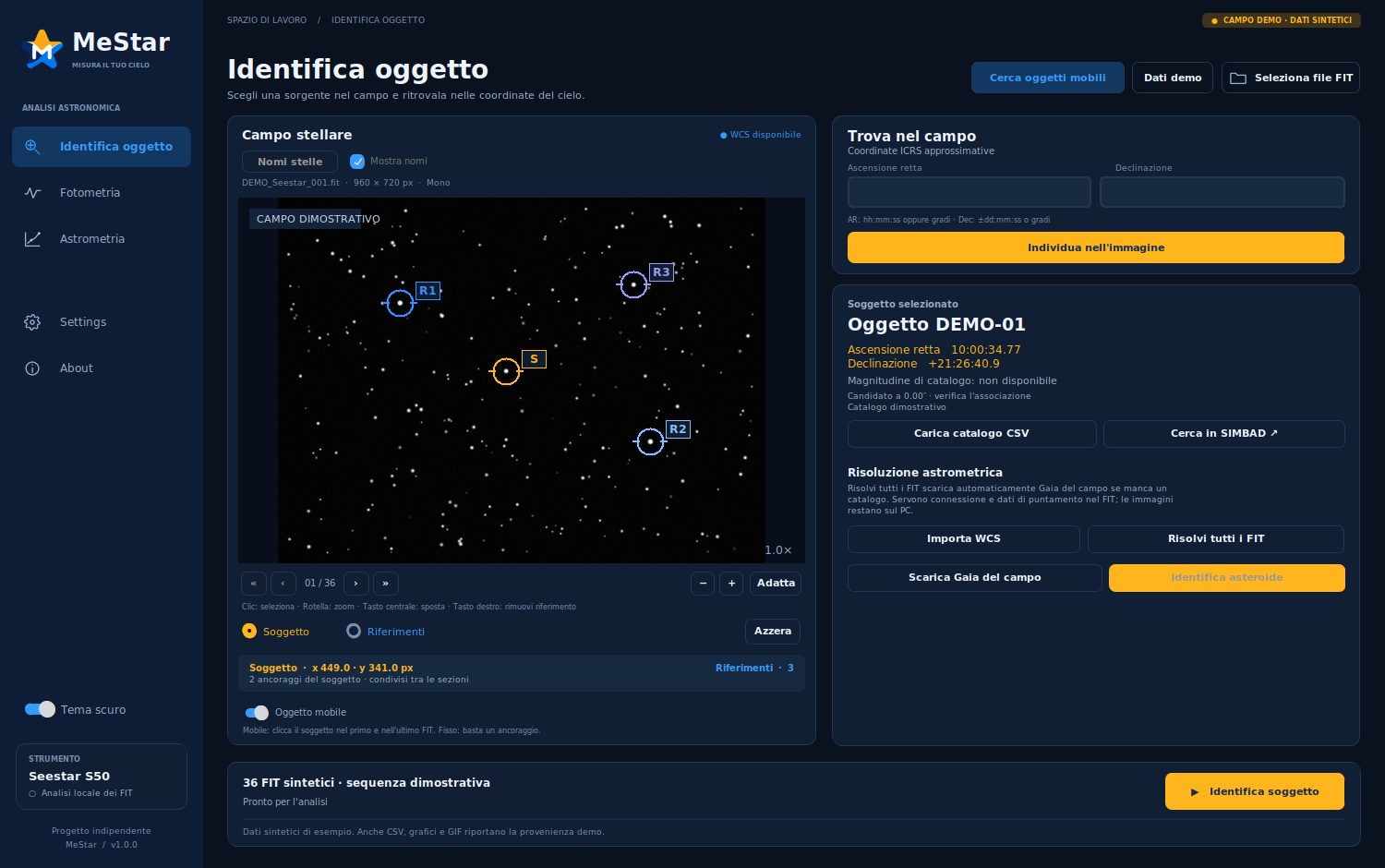
Open MeStar. On a fresh installation, the main analysis pages appear in Italian: Identifica oggetto, Fotometria and Astrometria.
The application may display its built-in demo images. You can leave them loaded while changing the language.
2. Open Settings
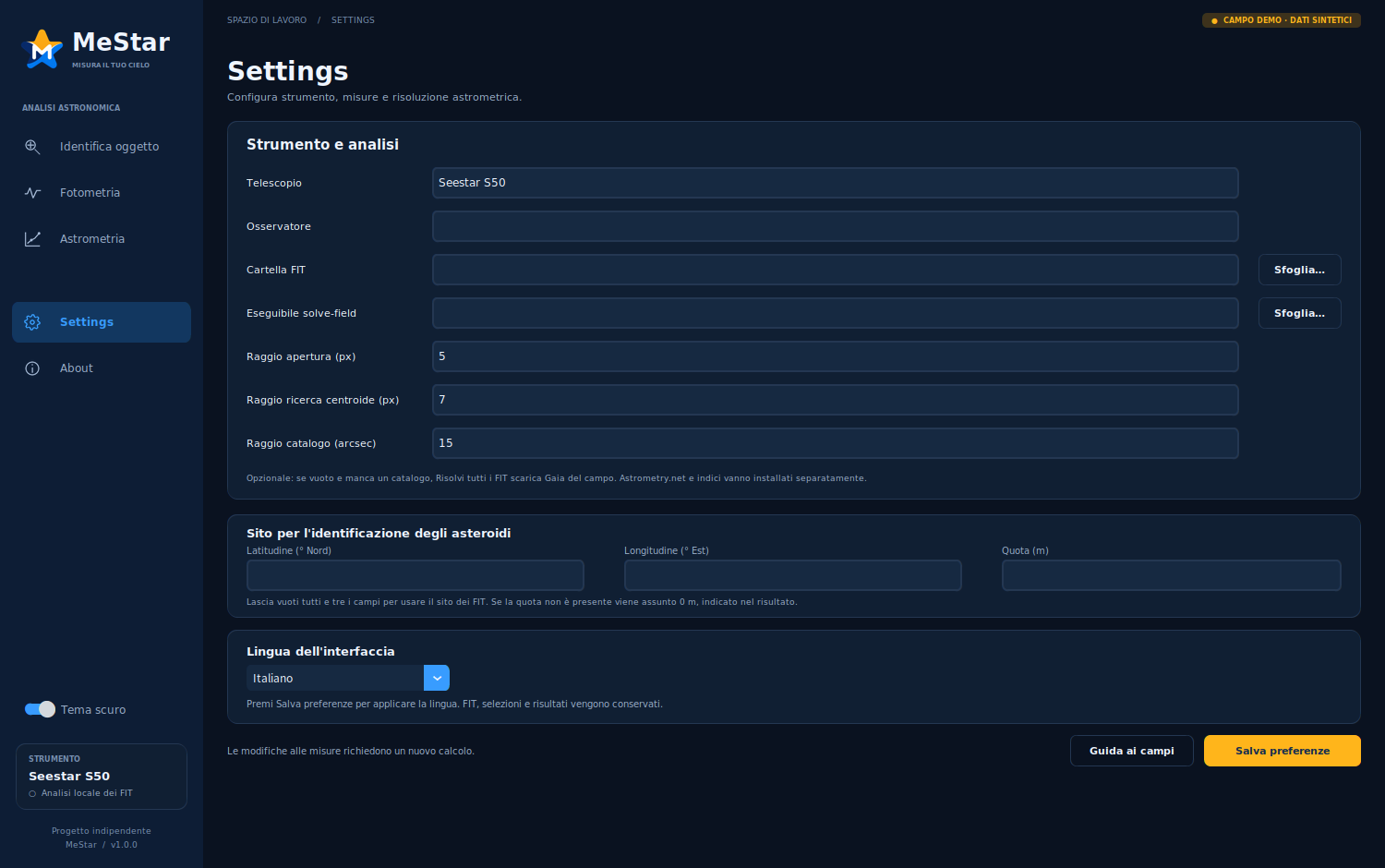
Click Settings in the left sidebar, next to the gear icon. The label is already written in English, even when the rest of the interface is in Italian.
Near the bottom of the Settings page, find Lingua dell'interfaccia, which means Interface language. The dropdown initially shows Italiano. If this section is not visible, scroll down within the Settings page or enlarge the window.
3. Choose your preferred language
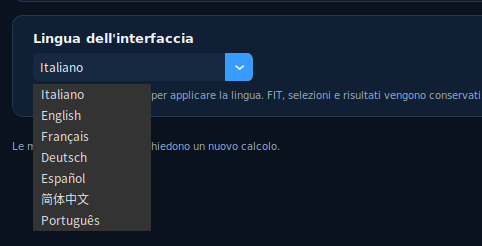
Open the dropdown next to Italiano and choose the language you want to use. For this example, select English.
The menu displays each language in its own name:
| Menu entry | Language |
|---|---|
| Italiano | Italian |
| English | English |
| Français | French |
| Deutsch | German |
| Español | Spanish |
| 简体中文 | Simplified Chinese |
| Português | Portuguese |
4. Click Salva preferenze
After you select English, the dropdown shows your choice, but the rest of the interface remains in Italian until you save it.
Click the yellow Salva preferenze button at the bottom right of the Settings page. This means Save preferences.

5. Check the updated interface
The interface changes immediately. In the English version, the section becomes Interface language, the button becomes Save preferences, and the confirmation Preferences saved. appears at the bottom of the page.
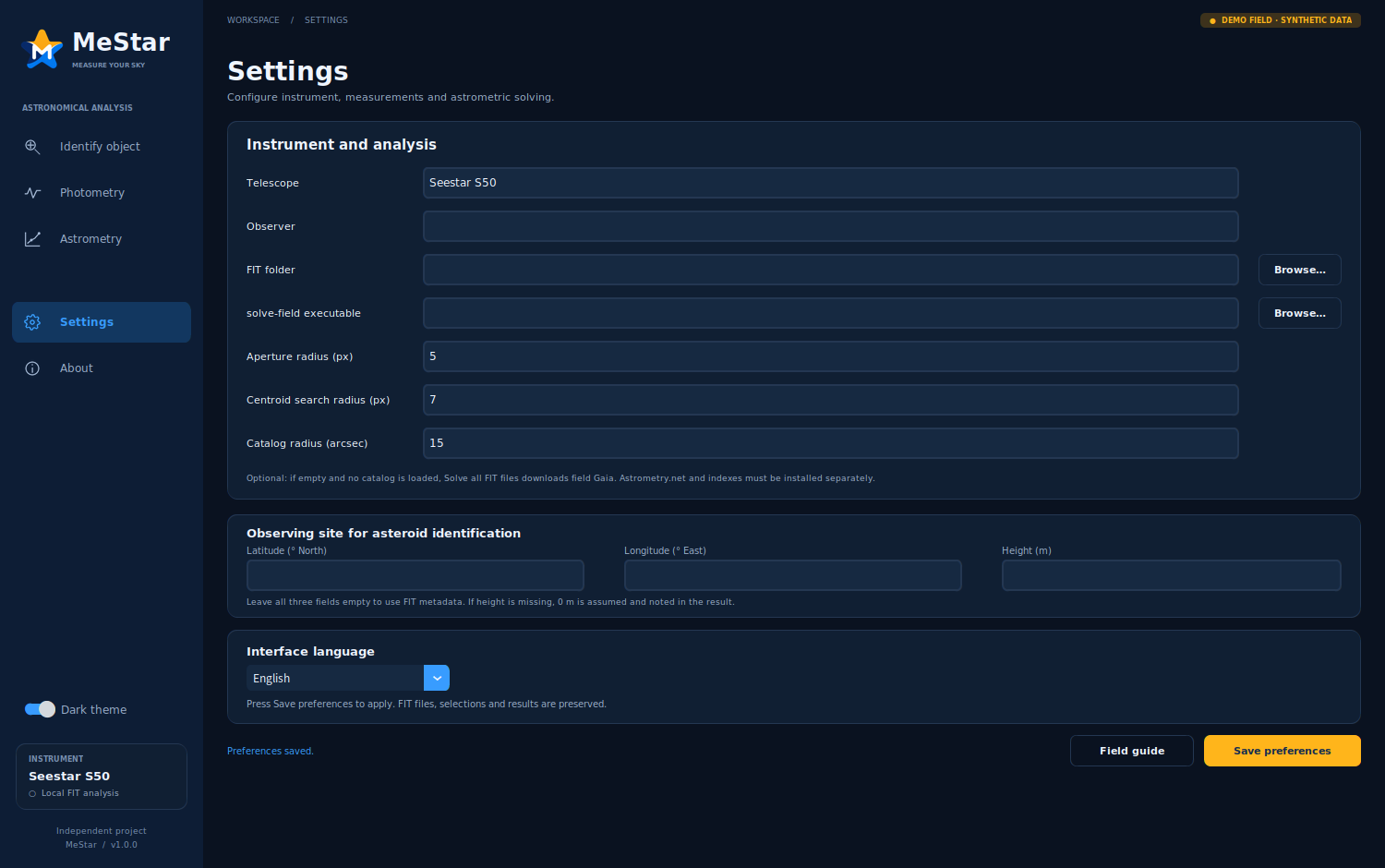
MeStar remembers your choice for the next launch. Your loaded FITS images, selected target, reference stars and existing measurements remain available in the current session when you change the language.
You can return to Settings at any time to choose another language. Remember to click Save preferences, or its translated equivalent, after making your selection.
Still seeing Italian? Check that you clicked Salva preferenze after choosing your language. Selecting an entry in the dropdown alone does not apply the change.
Screenshots were captured from MeStar 1.0.0 using the dark theme and built-in synthetic demo data. Window decorations may differ between operating systems.